
Google Ads Custom Audiences from Salesforce (Setup Guide)
Prerequisites
Before creating Google Ads custom audiences, make sure that:
- Heeet is installed and configured in your Salesforce org
- The Google Ads integration is connected in Heeet
- You have access to the Google Ads account and customer ID
- Salesforce Lead and/or Contact objects are enabled
How Google Ads Custom Audiences Work with Heeet
Heeet allows you to define audience triggers based on Salesforce data.
When a Lead or Contact meets the defined conditions:
- The record is automatically added to a Google Ads custom audience
- Identifiers such as email, phone, or name are securely sent
- The audience stays updated as Salesforce data changes
This removes the need for CSV uploads or manual audience maintenance.
Create a Google Ads Custom Audience from Salesforce
To create a custom audience:
- Go to Heeet Settings → Integrations → Google Ads
- Open Audience Triggers and click New
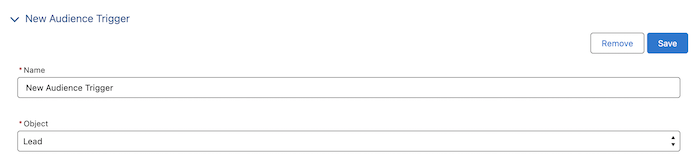
- Select the Salesforce object (Lead or Contact)
- Choose the Google Ads account, customer ID, and audience

- Define the trigger conditions (for example: status, amount, GCLID)

- Select the fields to send (email, phone, first name, last name)

- Save the trigger
Once enabled, matching records are automatically synced to Google Ads.
Automatic Audience Sync
After setup:
- Custom audiences are synced automatically
- Updates occur without manual action
- New Leads or Contacts are added as soon as conditions are met
This ensures your Google Ads targeting always reflects the latest CRM data.
Activate Google Ads Audience Sync
Automatically add Salesforce leads and contacts to Google Ads audiences—no CSV exports, always up to date.