
How to connect Google ads with Salesforce


Setup

In Salesforce, click on the app launcher and search for Heeet.The Heeet settings page will open in a new window.For each integration you want to activate, click on the"Sign Up" / "Connect" button.Select a start date from which you'd like to startgetting your campaigns data in Salesforce.


Select Start Date

Set a start date (we recommend to use today date to avoid syncing historical data and startcollecting campaign costs, impressions and clicks from today) + click on Save
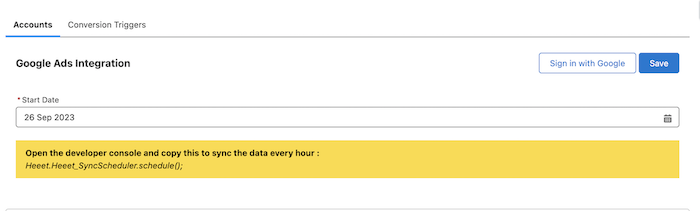
image info


Connect your account

Click on Sign in with Google and connect your account (check all the permissions).

  1. You should see a confirmation message
image info
  1. Select customer accounts you want to sync and click on Save
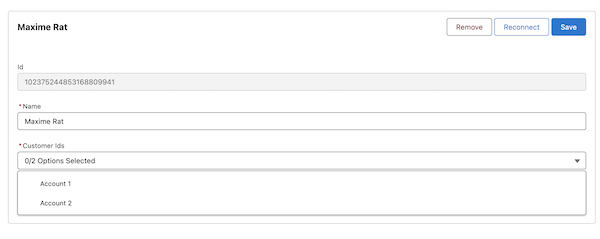
image info
  1. It is done with Google Ads. The sync will occur every hour.


Setup Conversion triggers

Create a new trigger to send conversions to Google Ads

  • Go to Heeet Settings > Integrations > Google Ads (A)
  • Click on Conversion Triggers (B) and on New (C)
  • Give a name to your conversion trigger (ex: closed won opportunity)
  • Select the connected Google Ads account, customer ID and existing Google Ads conversion (D)
  • Select the triggering Salesforce object (E)
  • Add a condition and fill in the value which should trigger the event. (F) Please note that you have to paste the API name of the field value. Exemple: You want to send an event to Google Ads when a lead is converted. Then you will have to select the API name of the Lead « Status » field
  • Select what amount field should be sent as conversion value (G)
  • Finally, select what Gclid field (unique advertising ID associated to a user) should be used. (H)
  • You can select either Heeet First Click Google Gclid or Heeet Last Click Google Gclid.

Tip: if you want to use first click Gclid if last click Gclid is missingor last click Gclid is first click Gclid is missing, ask a SalesforceAdmin to build a Formula Field in Salesforce (« GCLID ») takingone or the other value.

image info


Setup Audience triggers

Create a new trigger to send Lead/Contact to Google Ads Audience

  1. Click on Audience Triggers and click on New
  2. Select the Object the conversion audience will be applied (between Lead and Contact)
image info
  1. Select the Google Ads Account, the Customer Id and Audience
image info
  1. Select the Conditions (Amount and Gclid)
image info
  1. Select the Values (FirstName, LastName, Email, Phone)
image info
  1. Click on Save


Data Sync

Once configured, Heeet will automatically sync the following data from Google Ads to Salesforce:

  • Campaign costs
  • Impressions
  • Clicks
  • Conversion data
  • Audience data

The sync occurs every hour to ensure your Salesforce data is always up to date.

End Google Tag Manager (noscript)