

LinkedIn Ads Conversion Tracking in Salesforce
Prerequisites
Before creating conversion triggers, make sure that:
- Heeet is installed and configured in your Salesforce org
- The LinkedIn Ads integration is connected in Heeet
- You have access to the LinkedIn Ads account and conversion you want to use
- You know the API names of the Salesforce fields used for triggering conditions and values
Configuration Steps
Follow these steps to configure conversion triggers for LinkedIn Ads in Heeet:
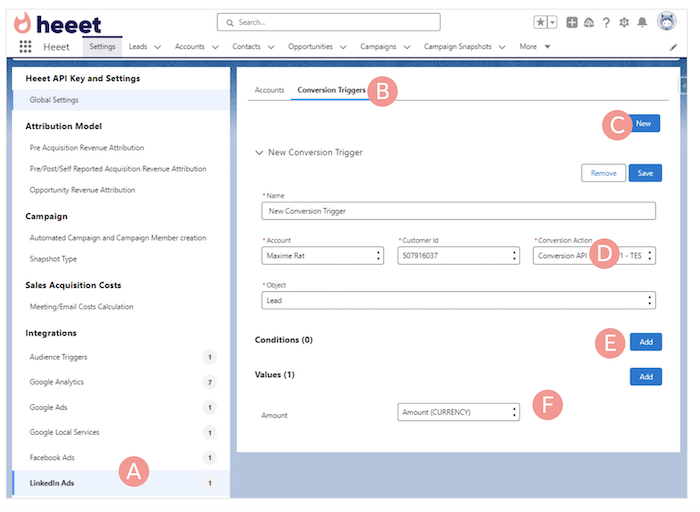
- Go to Heeet Settings → Integrations → LinkedIn Ads (A)
- Click Conversion Triggers (B), then click New (C)
- Enter a name for your conversion trigger (for example: Closed Won Opportunity)
- Select the connected LinkedIn Ads account, the customer ID, and the existing LinkedIn Ads conversion (D)
- Choose the Salesforce object that will trigger the conversion event (E)
- Add a condition and define the value that should trigger the event (F)
- You must use the API name of the Salesforce field
- Example: to send a conversion when a lead is converted, use the API name of the Lead Status field
- Select which amount field should be sent as the conversion value (G)
- Select the GCLID field (unique advertising ID) to associate with the conversion (H)
- Choose either Heeet First Click Google GCLID or Heeet Last Click Google GCLID
Tip
If you want to use the first-click GCLID when the last-click GCLID is missing (or the opposite), ask a Salesforce administrator to create a Formula Field in Salesforce (for example, GCLID) that returns one value or the other depending on availability.
Platform
Resources
Company
Compare
Free Tools
Features
Industries