
Connect Google Ads to Salesforce
Prerequisites
Before starting, make sure you have:
- Admin access to Salesforce
- Admin or standard access to the Google Ads account you want to connect
- Heeet installed and enabled in your Salesforce org
Step 1: Choose the Data Start Date
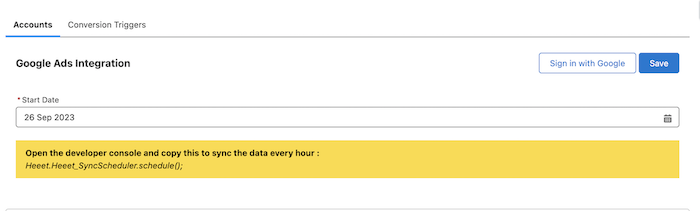
Set a start date (we recommend to use today date to avoid syncing historical data and startcollecting campaign costs, impressions and clicks from today) + click on Save
Step 2: Connect to Google Ads
Click on Sign in with Google and connect your account (check all the permissions).
- You should see a confirmation message

- Select customer accounts you want to sync and click on Save
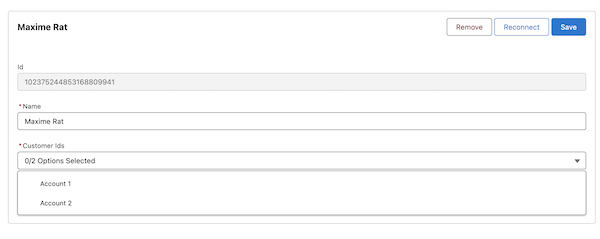
- It is done with Google Ads. The sync will occur every hour.
Step 3: Automatic Data Synchronization
After authentication, the connection is complete.
From this point:
- All active Google Ads campaigns are automatically detected
- Metrics such as impressions, clicks, CPC, and spend are synced
- Data is refreshed every hour
Information is stored and made available directly inside Salesforce via Heeet
No manual intervention or recurring setup is required.
Platform
Resources
Company
Compare
Free Tools
Features
Industries