
How to Add a Google Ads Tracking Template (Step-by-Step)
Tracking templates in Google Ads allow you to append tracking parameters to your ad URLs without changing the final landing page your users see. They are essential for accurate attribution, offline conversion tracking, and advanced analytics setups, especially when syncing Google Ads data with tools like Salesforce or HubSpot to ensure optimized paid ad ROI.
In this guide, we’ll explain what tracking templates are, why they matter, and how to add them correctly at different levels in Google Ads.
What Is a Tracking Template in Google Ads?
A tracking template is a URL structure that Google Ads uses to send users to your landing page while dynamically adding tracking parameters.
Instead of modifying your Final URL, you define a Tracking template that can include:
- UTM parameters, for Salesforce users who want a more detailed look at best practices read our how to article.
- ValueTrack parameters (like
{campaignid},{keyword},{device}) - Redirects to third-party tracking tools
Example:
/?url={lpurl}&utm_campaign={campaignid}&utm_keyword={keyword}
Google Ads then replaces the dynamic parameters automatically when the ad is clicked.
Why Use Tracking Templates?
Tracking templates help you:
- Keep Final URLs clean and readable
- Track campaigns, keywords, and ads precisely
- Enable offline conversion tracking
- Sync Google Ads data with Salesforce or other CRMs
- Avoid breaking ads when updating tracking logic
They’re especially useful if you manage tracking centrally and want changes to apply instantly without re-reviewing ads.
Where Can You Add a Tracking Template?
Google Ads lets you define tracking templates at multiple levels. Lower levels override higher ones.
- Account level
- Campaign level
- Ad group level
- Ad level
- Keyword level
Best practice:
Use the highest possible level to keep tracking consistent and easy to maintain.
How to Add a Tracking Template (Step by Step)
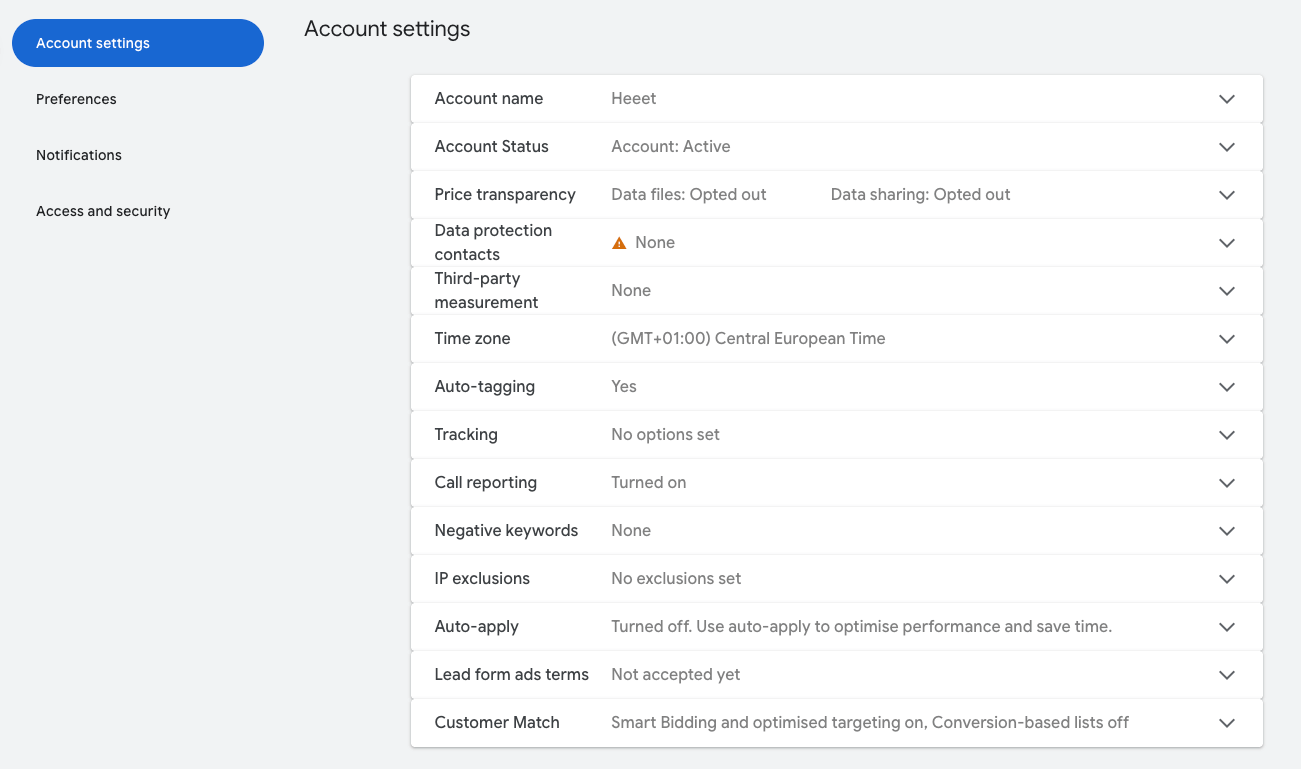
1. Go to Your Google Ads Account Settings
- Sign in to Google Ads
- Click Admin (or Tools & Settings)
- Select Account settings
2. Open the “Tracking” Section
- Navigate to Tracking or URL options
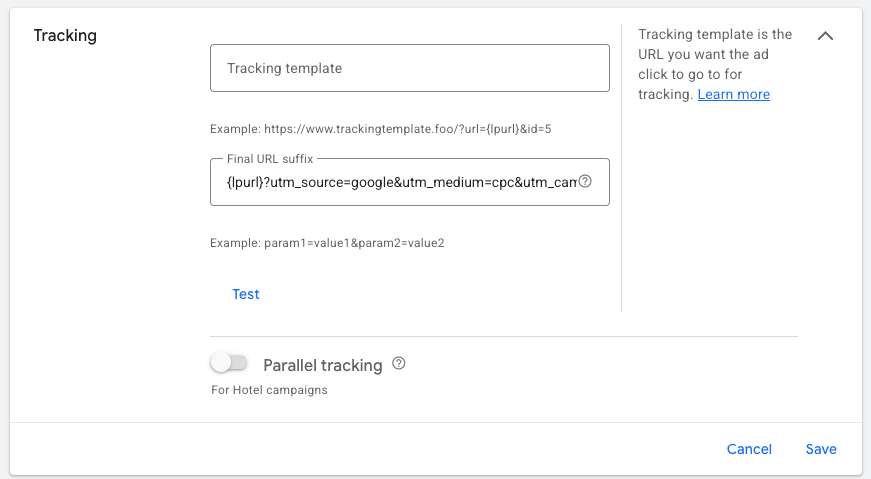
- Find the Tracking template field
3. Add Your Tracking Template
Paste your tracking URL, using {lpurl} to reference the final landing page.
Example with UTMs:
{lpurl}?utm_source=google&utm_medium=cpc&utm_campaign={campaignid}&utm_term={keyword}&utm_content={creative}
Example with a redirect:
https://tracker.yoursite.com/redirect?url={lpurl}&utm_source=google&utm_medium=cpc&utm_campaign={campaignid}&utm_term={keyword}&utm_content={creative}
⚠️ Always include {lpurl} — it tells Google Ads where the user should ultimately land.
4. (Optional) Add Custom Parameters
Custom parameters let you reuse values dynamically.
Example:
{lpurl}?utm_campaign={_campaign}&utm_content={_adgroup}
Then define:
_campaign = brand-search_adgroup = demo-request
This is useful for structured and scalable tracking setups.
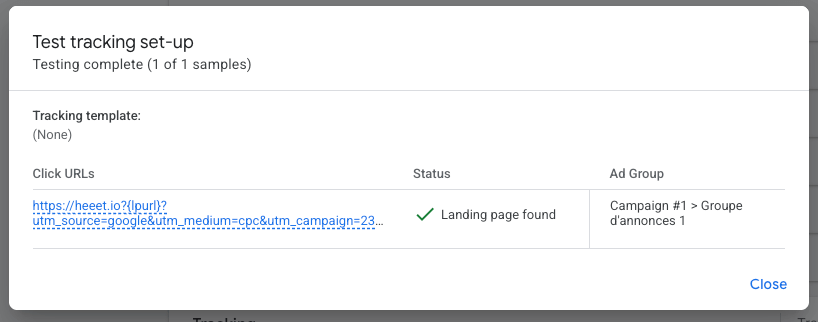
5. Test Your Tracking Template
- Click Test in Google Ads
- Make sure the preview URL resolves correctly
- Confirm the landing page loads without errors
If the test fails, Google Ads will show validation errors you need to fix before saving.
Best Practices for B2B & Salesforce Attribution
If you’re tracking revenue or offline conversions:
- Use account-level tracking templates for consistency
- Rely on ValueTrack parameters instead of static UTMs
- Send click identifiers (like
gclid) to your CRM - Avoid per-ad tracking unless absolutely necessary
This approach ensures clean data and reliable attribution across your entire funnel.