How to Add Heeet Data to Your Salesforce Layouts
Follow these steps to display Heeet data on your Salesforce record pages (Lead, Account, Contact, or Opportunity):
Step 1: Open the Record Page in Lightning App Builder
- Open the Salesforce record (Lead, Account, Contact, or Opportunity) where you want to add Heeet data.
- Click the gear icon in the top-right corner.
- Select Edit Page from the dropdown menu.
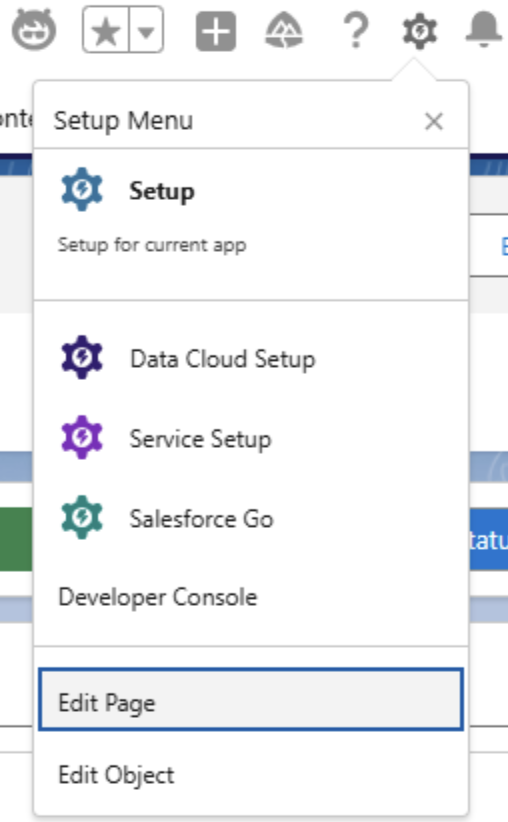
- The Lightning App Builder for that record page will open.
Step 2: Add the Dynamic Related List – Single Component
- In the Lightning App Builder, go to the Components panel on the right.
- In the search field, type Dynamic Related List – Single.
- Drag and drop the component onto the desired area of the page layout.
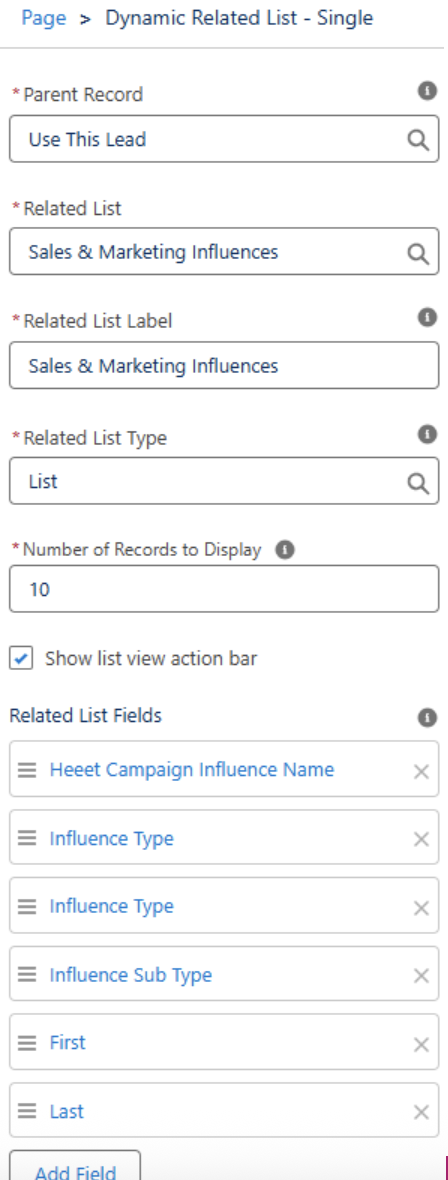
Step 3: Configure the Sales & Marketing Influences Related List
- With the component selected, set the Related List to Sales & Marketing Influences.
- Add the following fields to the related list display:
- Influence Type (e.g., SEO, SEA, Social Ads)
- Influence Sub Type (e.g., Bing Ads, Google Ads, LinkedIn)
- First (shows if this was the first interaction)
- Last (shows the latest digital touchpoint)
Step 4: Add the Heeet Content Influences Related List
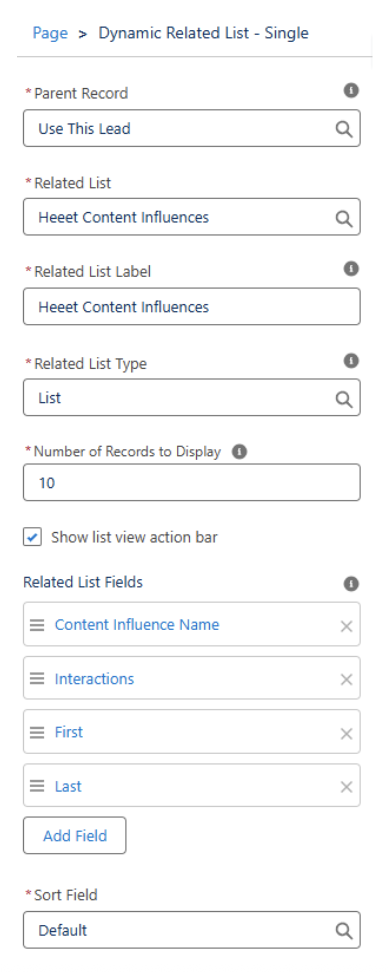
- To display content multitouch data, repeat Step 2 to add another Dynamic Related List – Single component to the page.
- In the component’s settings panel, configure:
- Related List: Heeet Content Influences
- Fields to Display: Content Name, Interactions, First, Last